Migration guide · Internal tool builders
Excel spreadsheet to web app, keeping what the formulas do
By Max Winter-Leinweber9 min read
In short
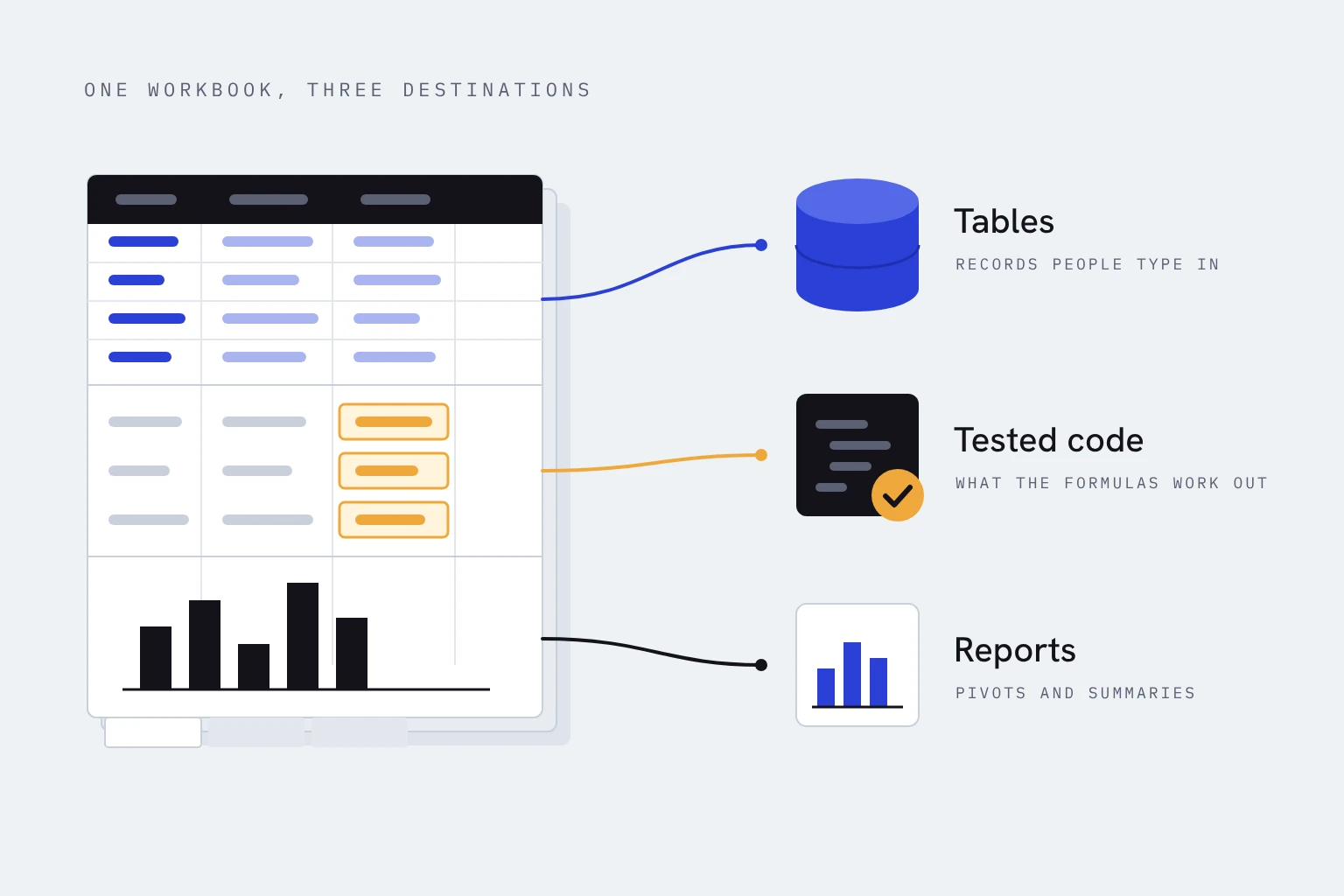
An Excel spreadsheet to web app migration separates three things the workbook mixes together: the records people type in, the calculations the formulas run and the reports built on top. The records move into Postgres tables, the formulas become code that is tested against the workbook's own answers, and Excel can stay on as a reporting tool. A workbook with a few sheets of records and one core calculation usually takes three to six weeks.
- Code export
- None, formulas and macros are rebuilt
- Data
- Each sheet of records becomes a Postgres table
- Hardest part
- Rules hidden in formulas and VBA
- Typical timeline
- 3 to 6 weeks
When should an Excel spreadsheet become a web app?
When the workbook has become a system several people depend on, not a calculation one person runs. The clearest sign is that the business would stop if the file were lost, broken or opened by the wrong person, while nothing about Excel protects it from any of those.
Copies travel by email. Quotes v7 FINAL.xlsx sits next to Quotes v7 FINAL (2).xlsx, and nobody is sure which one the invoices came from.
Several people type into it. Co-authoring on OneDrive or SharePoint helps, but one person sorting a single column or pasting over a formula still breaks it for everyone.
People outside the office need it. Field staff on a phone, a client checking their own orders or a partner adding records can't safely be handed the workbook.
Different people should see different rows. A hidden column or a protected sheet stops casual edits, not reading: anyone with the file has every row in it.
A macro only works on one PC. VBA doesn't run in Excel for the web or in the Excel phone apps, so the button that builds the monthly report depends on one laptop.
Keep the spreadsheet when it's a model one person uses to think with: a forecast, a pricing calculator or a one-off analysis. Excel is the right tool for that, and a web app would only slow it down. For the cases in between, such as an internal tool with simple rules and no customers signing in, a no-code builder may be enough. The Build or No-Code Quiz asks seven questions to find out whether no-code will do or the job needs real code. Take the Build or No-Code Quiz
The same pattern shows up in shared Google Sheets, in roughly the same order. The signs a Google Sheet has outgrown itself
Is your workbook a database, a calculator or a report?
Usually all three at once, and each part goes somewhere different. Sheets where every row is a customer, a job or an order are a database and become tables. Sheets full of formulas are a calculator and become code. Pivot tables and summary tabs are reports and become pages, downloads or a live connection back into Excel.
| In the workbook | In the web app | Watch for |
|---|---|---|
| A sheet with one record per row | A Postgres table with a primary key | Totals rows and notes typed among the data |
| Drop-down lists from Data Validation | A lookup table or a fixed list of allowed values | Old values still sitting in rows the list no longer offers |
| VLOOKUP, XLOOKUP and INDEX MATCH between sheets | Foreign keys and joins | Lookups that match on a name rather than an ID |
| SUMIFS, COUNTIFS and pivot tables | Queries, shown as report pages or exports | Filters someone applied once and never removed |
| Calculation sheets | Server code with tests | Hard-coded numbers typed over a formula |
| Conditional formatting and coloured cells | A status field people choose on purpose | Colours that mean something only one person knows |
| Protected sheets and hidden columns | Roles and permissions checked on the server | Hidden columns that hold the real data |
| VBA macros and buttons | Server functions and scheduled jobs | Macros that email through Outlook or open other workbooks |
| Power Query steps | An import job that runs the same steps | Sources on someone's own drive |
Not every tab earns a rebuild. Workbooks pick up a 2019 tab, a scratch sheet and columns kept just in case, so check with the team which tabs still feed a decision or a customer, and leave the rest in the archived copy.
How do you move Excel formulas into a web app?
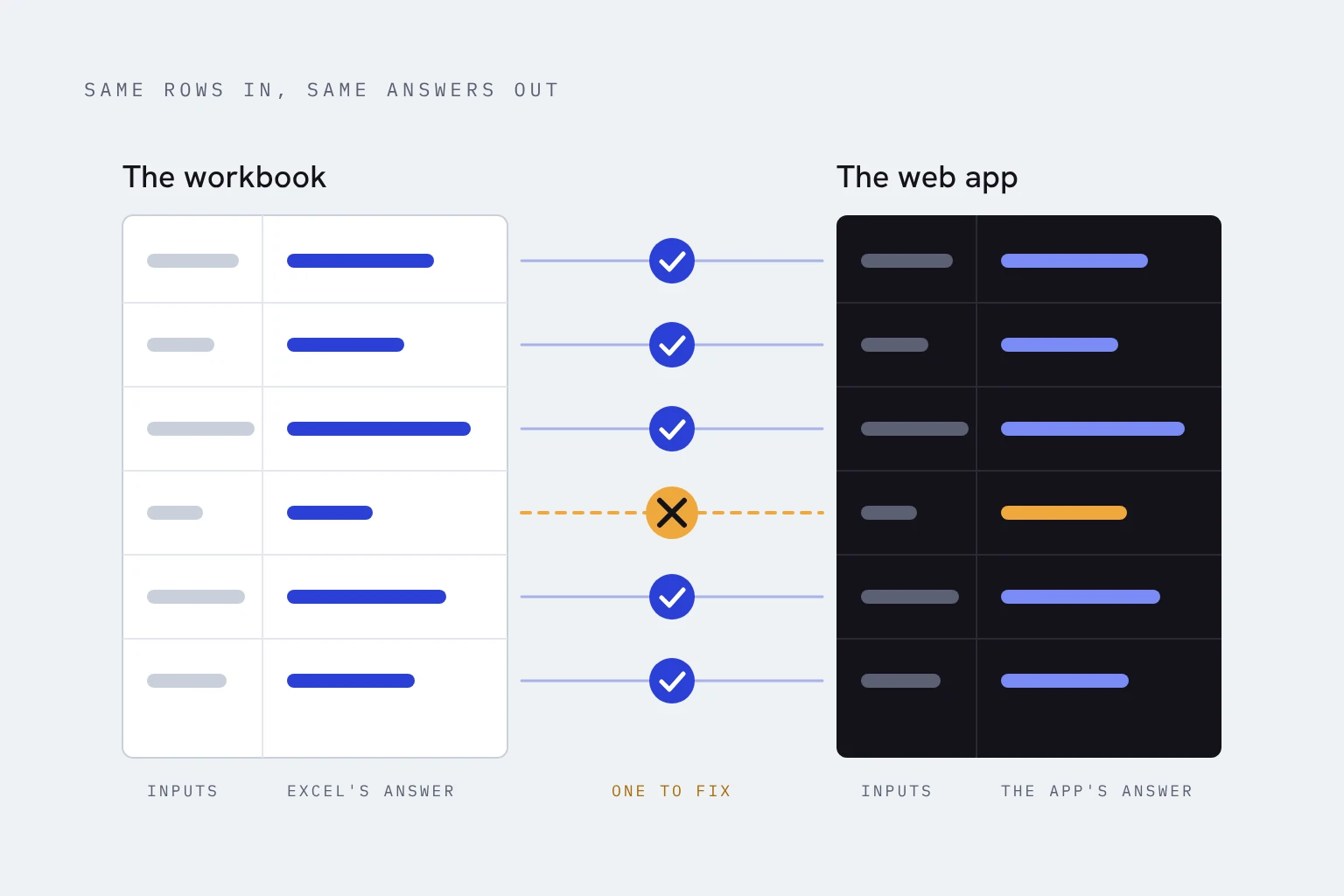
You rewrite them as code and prove the code gives the same answers as the workbook. Formulas don't export to anything that runs outside Excel, but the workbook can still check its own replacement: take real rows, record what Excel calculates for them, and make those figures the app's tests.
Find every formula. Show Formulas on the Formulas tab turns each sheet into its formulas. Trace Precedents and Trace Dependents show what feeds a cell and what it feeds, and Name Manager lists the named ranges the formulas refer to.
Write each rule down in a sentence. "Orders over £500 get 5% off, except trade customers, who always get 10%" is something a developer can build and a manager can check. A formula nested six IF functions deep is neither.
Collect test cases from real rows. Pick twenty or so rows that cover the ordinary cases and the odd ones, such as a refund, a zero quantity or a customer with no postcode. Record the inputs and the answers Excel gives.
Build until every case matches. Run the cases against the app's code on every change. A difference is either a bug in the new code or a mistake the spreadsheet has been making for years, and the second kind needs a decision from the business, not a developer's guess.
Getting the data out of Excel cleanly
Read the .xlsx file with a script rather than saving CSVs by hand. Save As CSV writes only the sheet that's open, and the plain CSV option isn't UTF-8, so £ signs and accented names often arrive garbled, while a script reads every sheet in one go and leaves the original file untouched.
pip install pandas openpyxl
python export_sheets.py Quotes.xlsximport sys
from pathlib import Path
import pandas as pd
workbook = Path(sys.argv[1])
out = Path("export")
out.mkdir(exist_ok=True)
# Every sheet, every cell read as text, so nothing is reformatted on the way out.
sheets = pd.read_excel(workbook, sheet_name=None, dtype=str)
for name, frame in sheets.items():
# The Excel row each record came from, for tracing problems back to the file.
frame.insert(0, "excel_row", range(2, len(frame) + 2))
path = out / f"{name}.csv"
frame.to_csv(path, index=False, encoding="utf-8")
print(f"{name}: {len(frame)} rows written to {path}")It writes one UTF-8 CSV per sheet into an export folder, with an excel_row column so any record can be traced back to the cell it came from. It reads the values Excel last calculated rather than the formulas, so open the workbook in Excel and save it once before running it.
What to clean before the import
Dates are stored as numbers counting days from 1900, and some will be text that only looks like a date. Check for US month-first dates among the UK ones, which read as valid dates in the wrong month.
Leading zeros vanish from phone numbers and account codes typed into cells Excel treats as numbers. Store these as text in Postgres, and restore the zeros where the length tells you they're missing.
Excel keeps 15 significant digits, so long reference numbers and barcodes entered as numbers have already lost their last digits. Find the originals if they matter.
Merged cells, a second header row and subtotal rows don't belong in a table. Unmerge, keep one header row, and drop the totals, which the app recalculates.
One cell holding several values, such as "Red, Blue", becomes a child table with one row per value.
Acme Ltd, ACME Limited and Acme Ltd. with a trailing space are one company to a person and three to a database. Merge near-duplicates and give each customer one ID before the import, not after.
Run the import into a staging database, compare row counts and a few totals with the workbook, fix what's off and run it again. Repeat on a fresh copy of the file until the numbers match, then keep the script for the final move.
From Excel spreadsheet to web app, one sheet at a time
Move the typing first and keep Excel for the reports. Once new records are entered in the web app, the database is the only master copy, and anyone who still likes a pivot table can have one fed from it.
Launch the screens that replace the sheet people type into most. From that day, new records go into the app's database and nowhere else.
Take away edit access to that sheet on SharePoint or OneDrive, or swap its contents for a note pointing at the app, so nobody carries on adding rows to the old copy.
Point the reports at the database. An .xlsx or CSV export from the app works, or Excel can read a read-only database login through Get Data or an ODBC driver, so pivot tables and charts keep working and nobody can type over the source.
Run the calculations in both for one full cycle, such as a month of quotes or invoices, and switch the workbook's calculation sheets off once the totals agree.
Keep a dated, read-only copy of the final workbook. When someone asks next year why a number changed, it's the first place to look.
Staff don't need new passwords either. A web app can sign people in with the Microsoft 365 work accounts they already use for Excel. Keeping Microsoft work sign-in when you move off Power Apps
Some workbooks are half of a pair, filled from an Access database or feeding one. Move the two together, or the old database keeps writing to a workbook nobody reads. Moving an Access database to a web app
How long does an Excel to web app migration take?
Three to six weeks for a workbook with a few sheets of records, a handful of roles and one core calculation. File size says little about the effort; the rules hidden in formulas and VBA say most. Before asking anyone for an estimate, count the calculation sheets and the lines of VBA, and note which macros talk to Outlook or other files. What our web app development covers
A workbook tied to several others through links and macros goes better in stages, each with its own switch-over. The MVP Scope Planner helps draw the first line: list the features, size them and see what fits a one week build and what can wait. Plan the first stage with the MVP Scope Planner
Then put a number on that first stage. The MVP Cost Calculator gives a ballpark price and timeline from eight quick questions, and a first stage of data entry screens plus the main calculation often fits one of our fixed-price sprints. Get a ballpark price from the MVP Cost Calculator
Both sprints are priced before any build starts, so the first stage has a fixed cost even if the later ones wait. Compare the two fixed-price sprints
Frequently asked questions
- Can I turn an Excel spreadsheet into a web app without coding?
- For a simple internal tool, often yes. Microsoft Lists and Power Apps suit teams already on Microsoft 365, and no-code builders such as AppSheet can use an Excel file in OneDrive as their data. They reach their limits when customers sign in, when different people need different rows, or when the calculations are the heart of the business.
- Can the web app still take spreadsheets from suppliers or customers?
- Yes. The app can accept an .xlsx or CSV upload, check every row against the same rules as its forms, and show which rows failed and why before anything is saved. Price lists, timesheets and order sheets keep arriving as spreadsheets, but nobody has to retype them.
- Will the web app work without an internet connection?
- Not by default. An Excel file opens on a train with no signal, while a web app needs a connection unless it's built as a progressive web app that saves entries on the device and sends them when the signal returns. Decide which screens need that before the build, because adding it later touches every form.