Guide
Six dashboard app design mistakes to fix on paper
The costliest dashboard app design mistake is arranging the data you have before deciding which question the screen answers, and for whom. The other five grow from it: numbers nobody defined, mock-ups that only show a good day, meaning hidden in colour and hover, a desktop layout squeezed onto a phone, and sign-off on pictures instead of behaviour. A sketch and a page of notes catch all six before anyone writes code.
By Max Winter-Leinweber7 min read
- Written for
- Founders commissioning a dashboard
- Worked example
- A wholesale bakery's ordering app
- Cheapest fix
- A sketch in plain grey boxes
The dashboard app design starts from the data you have
A row of headline figures, a big chart and an activity feed looks finished and tells nobody what to do next. Start from one kind of user and the question they come back to the screen to answer, then give that answer the most space.
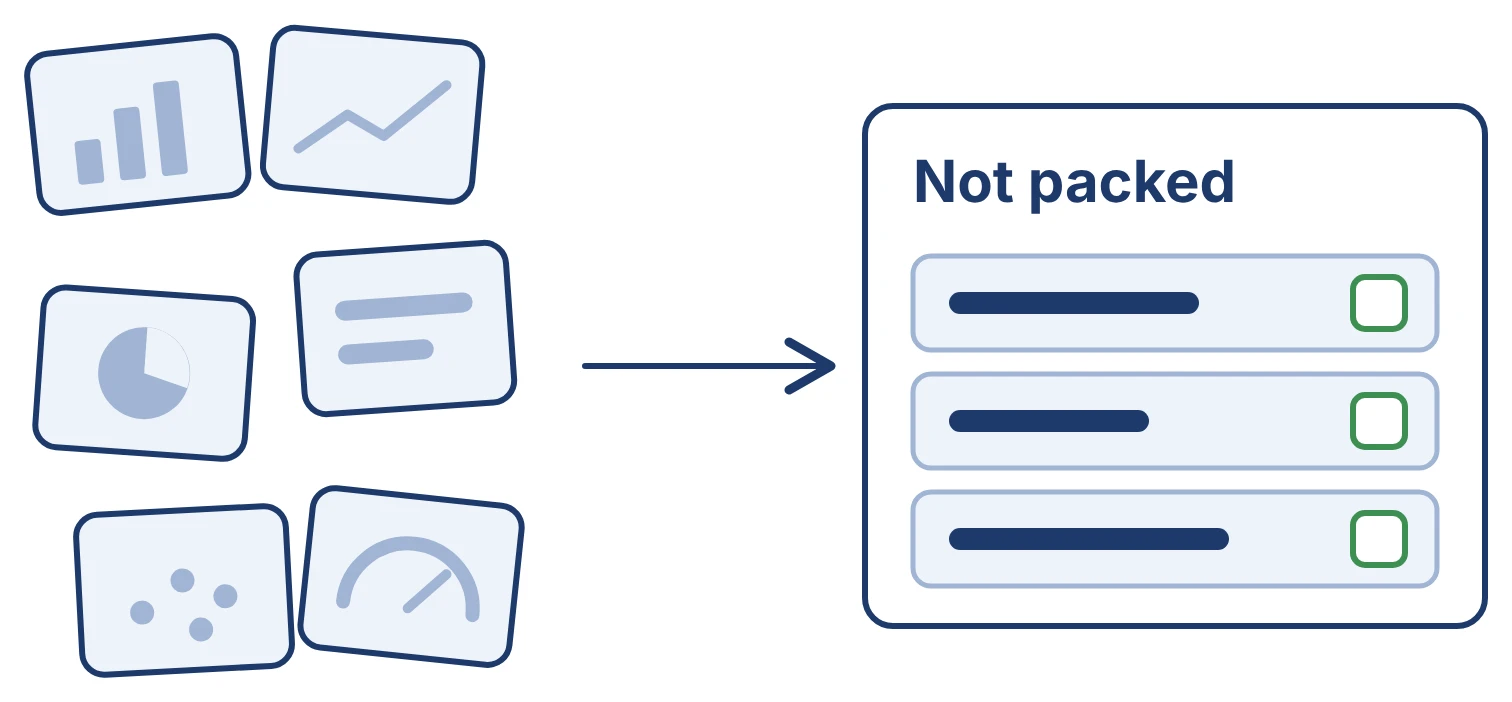
Take a wholesale bakery whose café customers order through an app. Three people open the same app every day, and none of them wants the same first screen.
| Role | The question they bring | What the first screen shows |
|---|---|---|
| Dispatch lead | What isn't packed for tomorrow's van? | Tomorrow's unpacked orders, grouped by delivery route |
| Accounts | Who has gone past their payment terms? | Customers over their terms, oldest debt first, with a reminder button |
| Owner | Which cafés are ordering less? | Customers whose last four weeks are down on the four before |
Revenue this month and a chart of orders by day are context for all three people and an answer for none of them. Choose the display once you know the question: a table when someone has to find a record and act on it, a line for change over time, bars to compare a handful of things. A big number earns its place only when it says what period and what unit it covers.
A first release rarely needs a screen for every role. Pick the one whose question costs the business most when nobody answers it, and give the others an export until they've told you what they'd act on. Our free MVP Scope Planner helps with that cut: list the views and features you want, size each one and see what fits the first release. Decide which screens make the cut with the MVP Scope Planner.
Nobody has written down what a number means
Give every figure on the screen a one-line definition before it's designed: where it comes from, how it's worked out, which period it covers and how often it updates. Without one, the designer and the developer each pick a meaning, and the customer finds the gap.
"Active customers" for the bakery could mean every café with an account, every café that ordered in the last 30 days, or every café on a standing order. Those are three different numbers. Pick one and put its meaning in the label or one tap away.
Totals need the same treatment. Decide whether a total counts every matching record or only the page on screen, and make sure a filter changes the figures and the list together. A count of 12 above a list of 40 makes people distrust both.
Pretty Metrics, which we built to chart founders' revenue from seven payment providers, shows how far a definition reaches into the build. Revenue in different currencies is never added together, and if one provider can't be read, the product shows an error rather than a total that's too low. Both rules were decided before any chart was drawn. Read how Pretty Metrics handles revenue data.
The mock-up only shows a good day
Mock-ups show a healthy account with six tidy rows, because that's the easiest picture to approve. A working dashboard spends much of its life in other states, and each one needs a design before the build, not a guess during it. Ask to see these:
A new café account with no orders, which says what will appear here and how to place the first order.
A filter that matches nothing, which keeps the filter on screen and offers to clear it.
Loading, which never flashes a zero that could pass for a real figure.
A refresh that failed, which says which figures are out of date and since when.
The busiest customer: hundreds of orders, a café name 40 characters long and a missing postcode.
That last one decides sorting, search and paging. A list that works with twelve orders and stalls at two thousand gets redesigned in a hurry, usually the week a big customer signs up.
The phone gets the desktop layout, only narrower
Decide which question the phone has to answer, and design that view for it, rather than stacking every widget into one long column. For the bakery, the dispatch lead checks unpacked orders on the warehouse floor; the owner's four-week comparison can wait for a laptop.
Tables are the usual casualty. Six columns don't fit, so each row becomes a short card with the two or three fields that drive the action (the café, the route and whether it's packed) and opens for the rest. A chart with thirty bars needs fewer bars or a different chart. Phones bring decisions that go beyond layout, from keyboards to links opened inside other apps, and our guide to mobile web development works through them. Read the mobile web decisions to make before you build.
Sign-off is based on pictures, not behaviour
Approve a dashboard against what it does, written as checks you can try yourself, not against how the screens look. For the dispatch view, three checks cover more than a page of design notes:
The dispatch lead filters to the north route, marks an order packed and sees it leave the list.
After a refresh, the order is still packed and the count of unpacked orders has dropped by one.
A driver can see the route but can't mark anything packed, even by sending the request without the app.
The third check is the one a design file can't show. Hiding a button from a role is not a permission: the server has to refuse the action, whoever sends it. How the interface, server and database share that work.
If what you need is a working app rather than a set of layouts, that's what we build: screens, server, database and sign-in together. Our MVP package is a fixed price, £10,000 + VAT for a two week sprint: one week of development and one of changes from your feedback, with a handover week after launch and the code and accounts in your name. Bring the role, the question and a sample of the data to a free 30 minute discovery call and we'll tell you whether your dashboard fits. Book a discovery call.
Frequently asked questions
- Does a dashboard need to update in real time?
- Only where someone acts on a change within minutes. A dispatch list on delivery morning might; an overdue invoices list is fine refreshed hourly. Live updates add build and running cost, so most first releases show when the data was last updated and offer a refresh instead.
- Should users be able to build their own dashboards?
- Not in a first release. Drag-and-drop layouts and custom widgets are a large build, and you learn which views matter by watching people use a few fixed ones. A CSV export covers the people who want to slice the data their own way until you know what to build for them.