Migration guide · AI app builders
What a Lovable app backup needs beyond version history
By Max Winter-Leinweber8 min read
In short
A Lovable app backup is four separate copies: the code, the database, the files users uploaded and the secrets and settings. Version history only covers the code and the daily database backups stay inside Lovable, so keep your own copy of each part outside it, then restore it into a fresh project once to prove it works.
- Version history covers
- Code only
- Cloud database backups
- Daily, about 14 days kept
- Not in the database export
- Uploaded files
- The real test
- A restore into a new project
Does Lovable back up your app already?
Partly. Version history records every change Lovable makes to the code, and you can restore any earlier version. If the app runs on Lovable Cloud, Lovable also takes a daily backup of the database and keeps about two weeks of them.
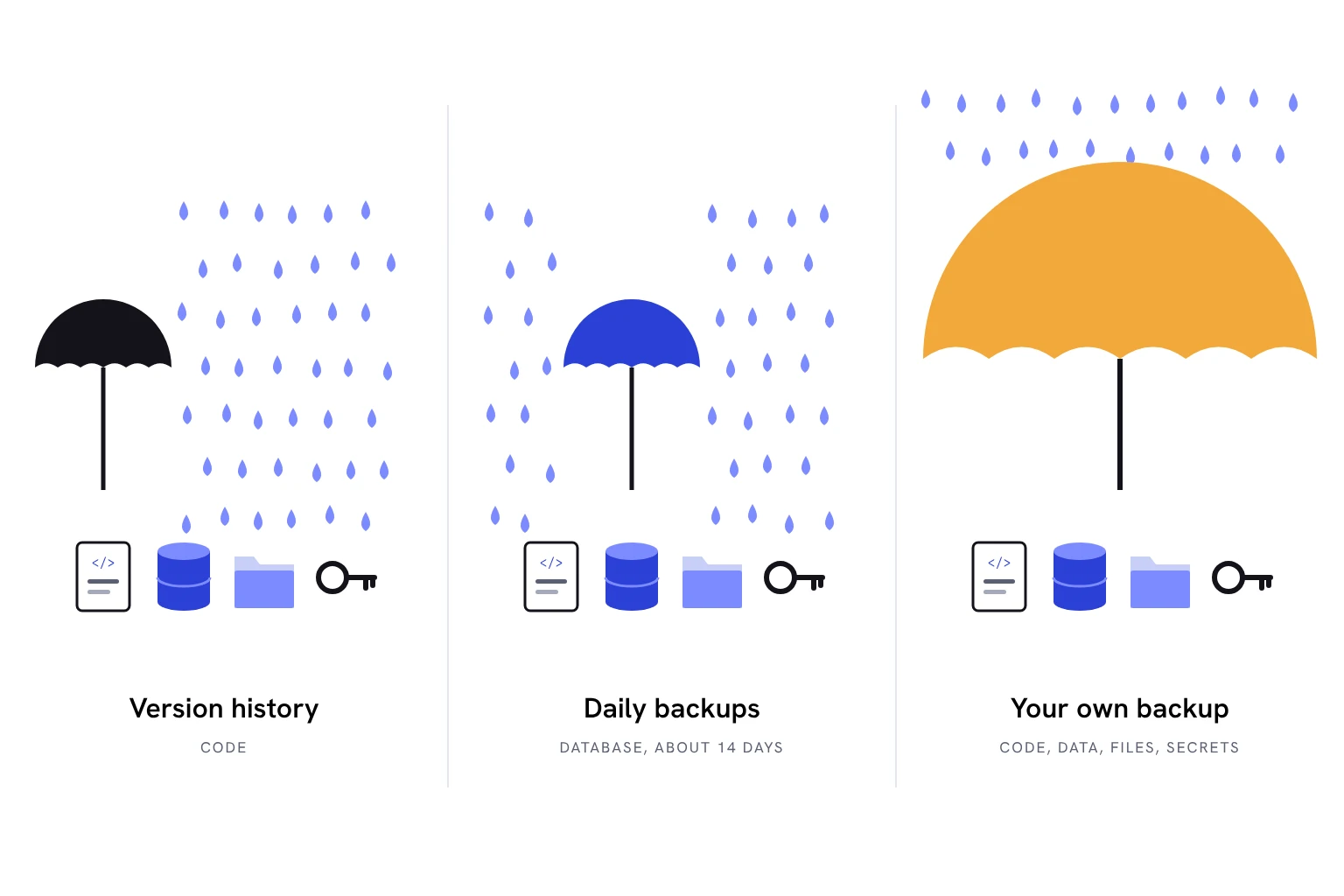
Each of those covers half the app, and they don't move together. Restoring a code version leaves the database where it is, and restoring a database backup leaves the code alone, so lining the two up at the same moment is your job. A database restore is also all or nothing, so it throws away everything customers did after that backup was taken along with the change you wanted to undo.
Both copies also live inside Lovable. That's fine for undoing a bad prompt from this morning, and no help at all if a founder's login is lost or the workspace is closed. A backup in the sense your customers would mean is a copy of the whole app that you hold yourself and have already tested by restoring it. Our audit for AI-built apps puts that same test to every app, next to checks on data access and secret keys. Run the seven-area audit on your app.
The four parts of a Lovable app backup
Code, database, uploaded files, and secrets and settings, each copied a different way. The last two get skipped most, because neither shows up when you look at the code or the tables.
| Part | Where it lives | How to copy it | How often |
|---|---|---|---|
| Code | Lovable, synced to a GitHub repository | A second clone of the repository outside GitHub | Daily while you build, plus a tag at each release |
| Database | Lovable Cloud or your own Supabase project | Lovable's database export, or a Supabase CLI dump | Weekly, and before any big change |
| Uploaded files | Storage buckets in the same backend | A separate download of every bucket | Weekly, or daily if users upload a lot |
| Secrets and settings | Cloud secrets, Supabase settings, other dashboards | A written list in a password manager | Whenever one changes |
Back up the code without breaking GitHub sync
Connect the project to GitHub, leave that repository exactly where it is, and copy it somewhere else. Lovable syncs both ways with a single branch, normally main. Its documentation warns that renaming, moving or deleting a connected repository, or the account or organisation that holds it, breaks the sync, and its FAQ calls the break permanent. The repository Lovable pushes to is the one thing not to tidy up.
A mirror clone makes the simplest second copy. git clone --mirror gives you every branch and tag, and git remote update inside it later fetches whatever has changed. Keep it somewhere that isn't signed in with the same GitHub login, so one compromised account can't delete both.
A busy day of prompting leaves a long run of commits, and none of their messages say which one worked. Tag the commit whenever the app is in a state you would happily go back to, with a name like before-payments, so a restore starts from a known good point rather than a guess.
Export the database, whichever backend you use
How you export depends on where the database runs. If the Cloud tab shows Lovable's own database settings, you're on Lovable Cloud. If the project connects to a Supabase project in your own Supabase account, you have direct access and more options.
On Lovable Cloud
In the Cloud tab, open Advanced settings, find the Database card and start an export. Lovable emails you when it's ready and saves the file to the project's storage. Download it straight away and keep it outside Lovable: Lovable says exports can't be downloaded once Cloud is removed from a project.
The export holds the database's structure and data, but not the files in storage buckets. It also holds every customer record, so store it encrypted and limit who can open it.
On your own Supabase project
Supabase includes daily backups on its paid plans, kept for a number of days that depends on the plan. On the free plan, don't count on one. On any plan, take your own dump with the Supabase CLI: supabase db dump with --role-only for database roles, with no flag for the schema, and with --data-only for the rows. Restored in that order into a new project, the files rebuild the database.
Sign-in accounts need a separate check. They live in Supabase's auth tables rather than your own, and a backup that brings back every order but not the accounts that placed them leaves every user resetting their password. Signing in as an existing user during the restore test catches this.
Copy uploaded files and secrets separately
A database export brings back the path to every uploaded file and none of the files. Profile photos and signed contracts sit in storage buckets, so a restore without them shows a broken image wherever a file used to be.
List the buckets in the backend's storage view and download each one in full. On your own Supabase project, the CLI's storage commands or a short script against the storage API will copy a whole bucket folder by folder. Note which buckets are public and which are private, because a bucket restored with the wrong setting either breaks the app or exposes files it shouldn't.
Secrets are the part you can't download later, since many dashboards show a key once and hide it after. Write the value into a password manager the day you add it, along with the settings a restore needs that nobody could rebuild from memory:
The value of every secret the edge functions read, not just its name
Sign-in providers, password rules and email templates from the auth settings
Each scheduled job, when it runs and which function it calls
The Supabase project's region, so a restore keeps customer data in the same place
Who should hold each of the accounts behind those secrets is a separate job from backing them up, and it belongs in the company's name before launch. The ownership checklist in our Lovable runbook.
Why exported Lovable code won't run, and how to fix it
Because the Lovable editor supplied the settings and the backend, and a fresh copy has neither. The code is a standard React and TypeScript project built with Vite, so the fixes are short once you know which piece is missing.
| What you see | Why | The fix |
|---|---|---|
| A blank screen or a Supabase error on load | The editor filled in the Supabase address and public key, and your copy has no .env file | Open the Supabase client file, note the variable names it reads, and add a .env file with the project URL and public key under those names |
| npm install stops with a lockfile conflict | The repository holds lockfiles for two package managers, such as npm and Bun | Pick one package manager and delete the other lockfile |
| Buttons that call a function do nothing | Edge functions and migrations sit in the repository's supabase folder, but nothing has deployed them to the restored project | Deploy them with the Supabase CLI and set their secrets |
Once it runs locally, putting it online meets the same gaps as any Vite app leaving a builder: inner pages that return a 404 when refreshed, and sign-in emails that link to the old address. Our Bolt guide covers both fixes, and they apply to a Lovable export unchanged. The deploy and sign-in fixes for a Vite app leaving a builder.
Test the backup by restoring it
Restore everything into a fresh Supabase project and a local copy of the code, then use the app the way a customer would. Block out an afternoon for the first one. It's the only way to find a gap before an outage finds it for you.
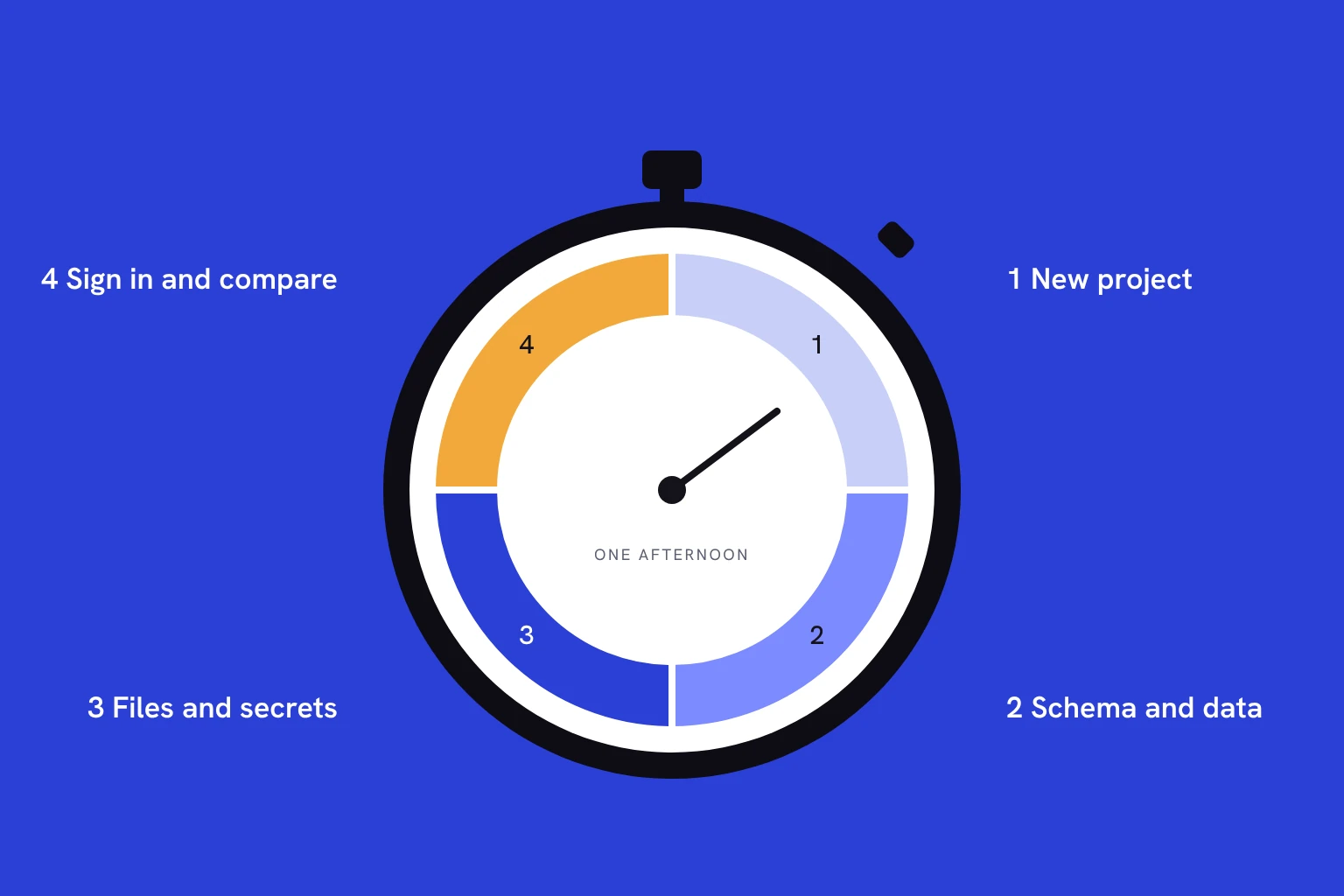
New Supabase project created, separate from production
Roles, schema and data restored, in that order, without errors
Every bucket uploaded again with its public or private setting
Secrets set and edge functions deployed
App running locally against the restored project, from a tagged commit
Signed in as an existing test user, with no password reset
Totals on the main screens, such as this month's orders, match production
A few uploaded files open from inside the app
Write each step down as you go, because whoever restores it for real may be in a hurry and may not be you. Repeat the drill after any big schema change and once more before launch, where it belongs on the same list as the legal pages and payments. Our free App Launch Checklist builds that list for your app, covering legal, payments, SEO, analytics and the app stores. Build your launch list with the App Launch Checklist.
If the restore shows the app should leave Lovable Cloud altogether, the exports you just tested are where that move starts. When we move an app off a builder, security and backups are set up from the start. How we move apps off AI and no-code builders.
Frequently asked questions
- Can I recover a deleted Lovable project?
- For a while. Lovable says it keeps a deleted project's code, version history, chat, settings and knowledge for 60 days. Don't rely on that for the database or uploaded files: export those before you delete anything.
- Does remixing a Lovable project count as a backup?
- Not really. A remix makes an independent copy of the project inside Lovable, which is handy for trying a risky change. It still lives in Lovable, so it won't help if you lose the account or workspace, and you should check what it copied before treating it as a copy of your data.
- How do I transfer ownership of a Lovable project?
- From Project settings. An owner can transfer a project to another member of the workspace, and on Business and Enterprise plans can send a transfer request to a Lovable account outside it. Projects can also move to another workspace. Take a full backup first, and check what happens to the GitHub connection and the backend before you transfer.